Viewing Image datasets with the ImageViewer Plugin
- ManiVault Studio 1.2 or higher
- |
- 09 Jul 2025
- |
- sreeparna
- |
- 2 min read
The ImageViewer Plugin provides interactive visualization for image datasets, including high-dimensional images with multiple data channels. It supports layering, colormapping, selections, and flexible layouts to compare multiple image datasets side-by-side.
To follow the examples in this tutorial you will need
- ManiVault Studio v1.2+ installed and running.
- ImageViewer, Data Hierarchy, Data Properties, hSNE and Scatterplot plugins built and available.
- A sample image file to load
In this tutorial, you’ll learn how to
- Use the ImageViewer Plugin to visualize loaded image datasets
- Customize image display settings such as colormaps, contrast, and layering
- Use the ImageViewer in conjunction with other views like Scatterplot and hSNE
Launching the Image Viewer
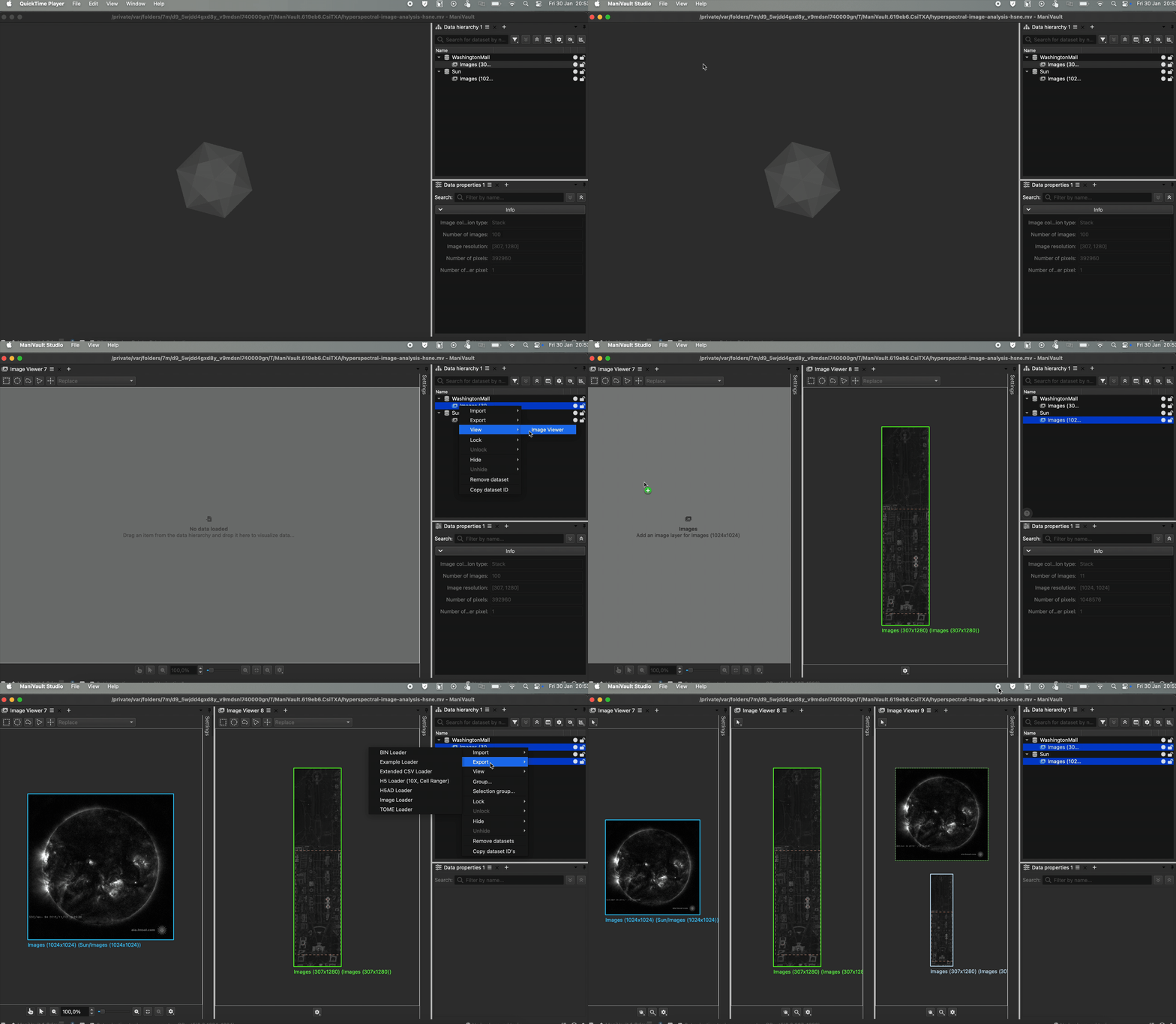
You have the following options to launch the Image Viewer plugin:
- From the Main Menu
- From the Data Hierarchy context menu
You can view multiple image datasets in one Image Viewer. You can arrange them vertically, horizontally, or in a grid layout to compare images side-by-side.
Launch ImageViewer and arrange multiple image datasets
Plugin features
Visualize image datasets
- View image data, including multi-channel images, and navigate using pan and zoom
- It is possible to overlay one image on top of another in one viewer and adjust settings of individual images. Access these options by expanding the Settings menu in the top-right corner of the viewer.
- Adjust colormaps, contrast, and brightness for each image channel
- To adjust image position and scale (x/y translation and zoom), go to
Settings > General. - To adjust color space options go to
Settings > Image.
- To adjust image position and scale (x/y translation and zoom), go to
- Selection and highlighting of image regions
- Toggle between navigation and selection modes by selecting the hand or cursor icons in the toolbar at the bottom of the Image Viewer.
Overlaying images
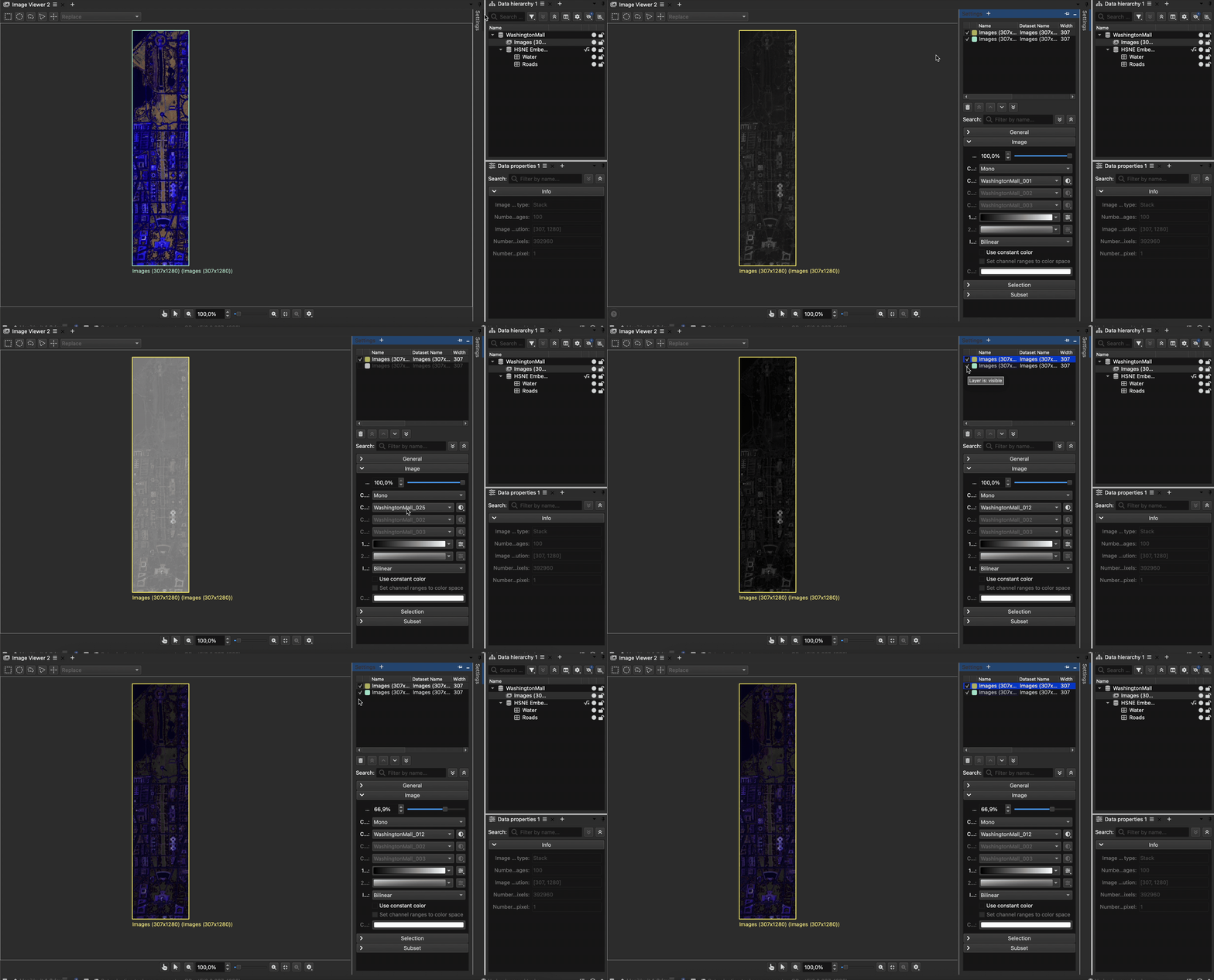
Working with different dimensions and color mappings
Selection options
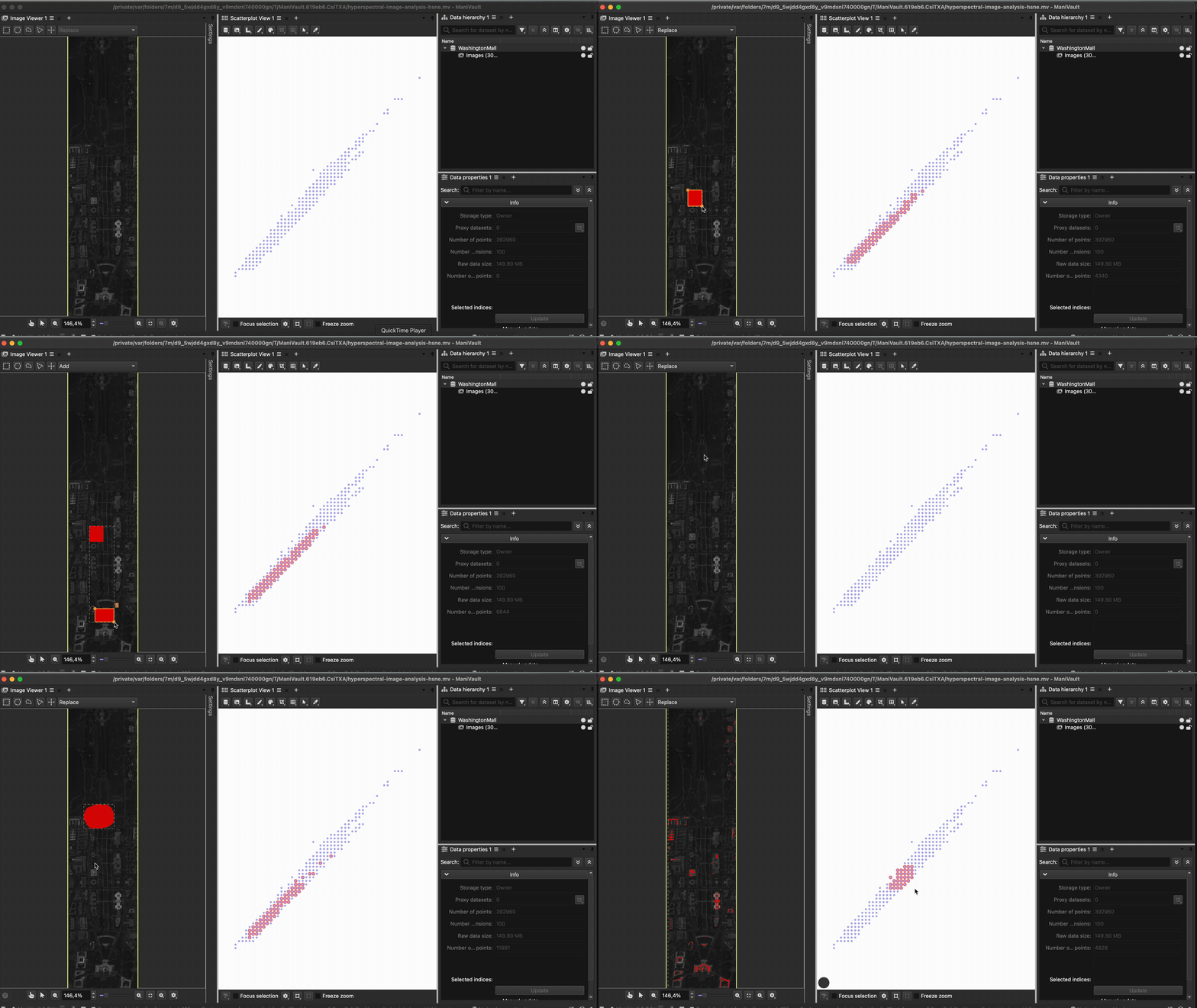
Visualizing derived images and analysis results
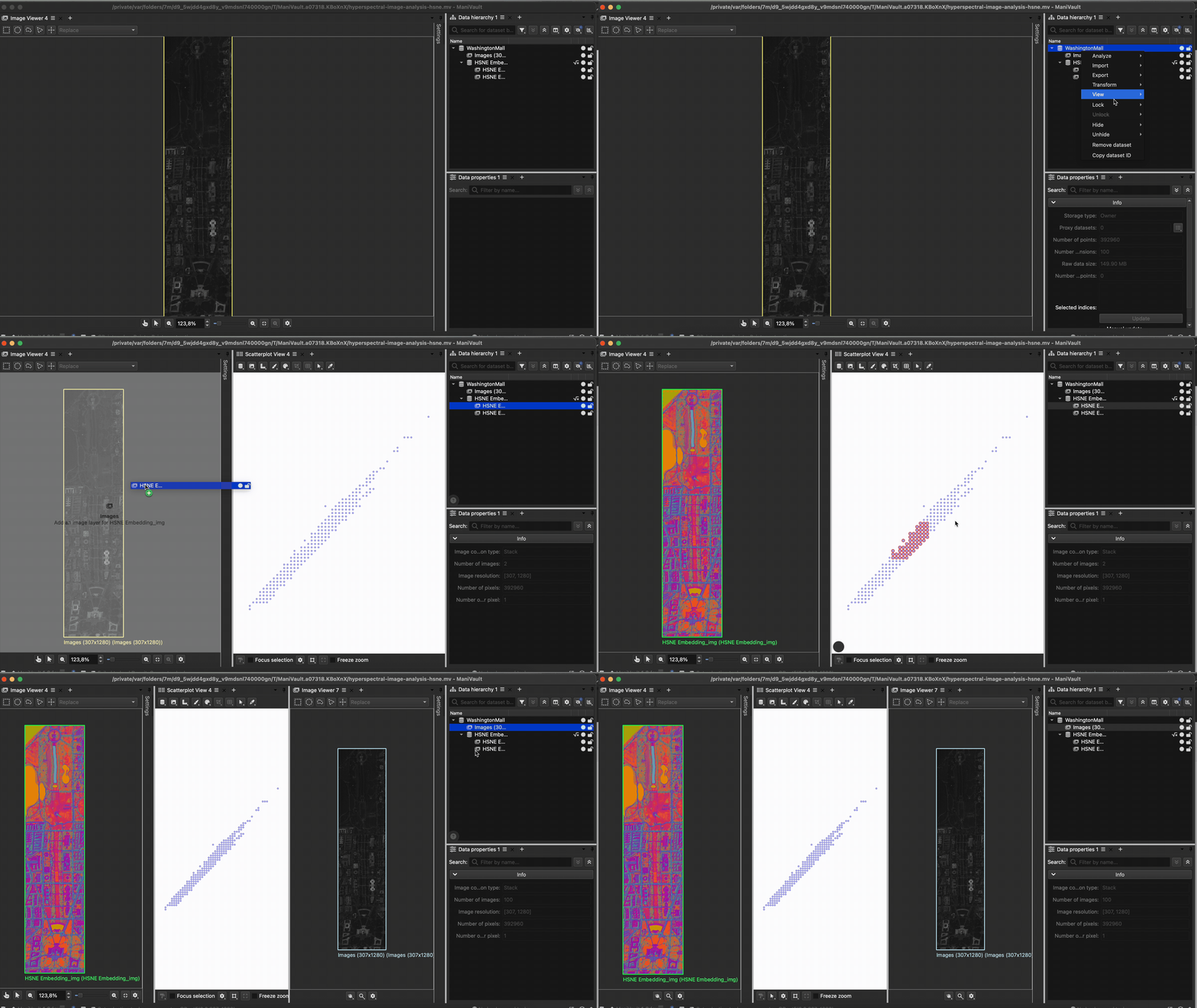
ImageViewer supports linked interaction with other ManiVault viewers, enabling coordinated exploration across different representations of the same data.
When image datasets are connected to derived views (such as embeddings), selections made in one viewer can be reflected automatically in the ImageViewer, and vice versa.
A common workflow is:
- Explore patterns or clusters in a high-dimensional embedding view
- Automatically convert derived datasets (with the same number of data points) into image representations
- Select points of interest in that view
- Instantly inspect where those selections originate in the image domain
- Refine or extend the selection directly on the image
Exploring patterns on derived data
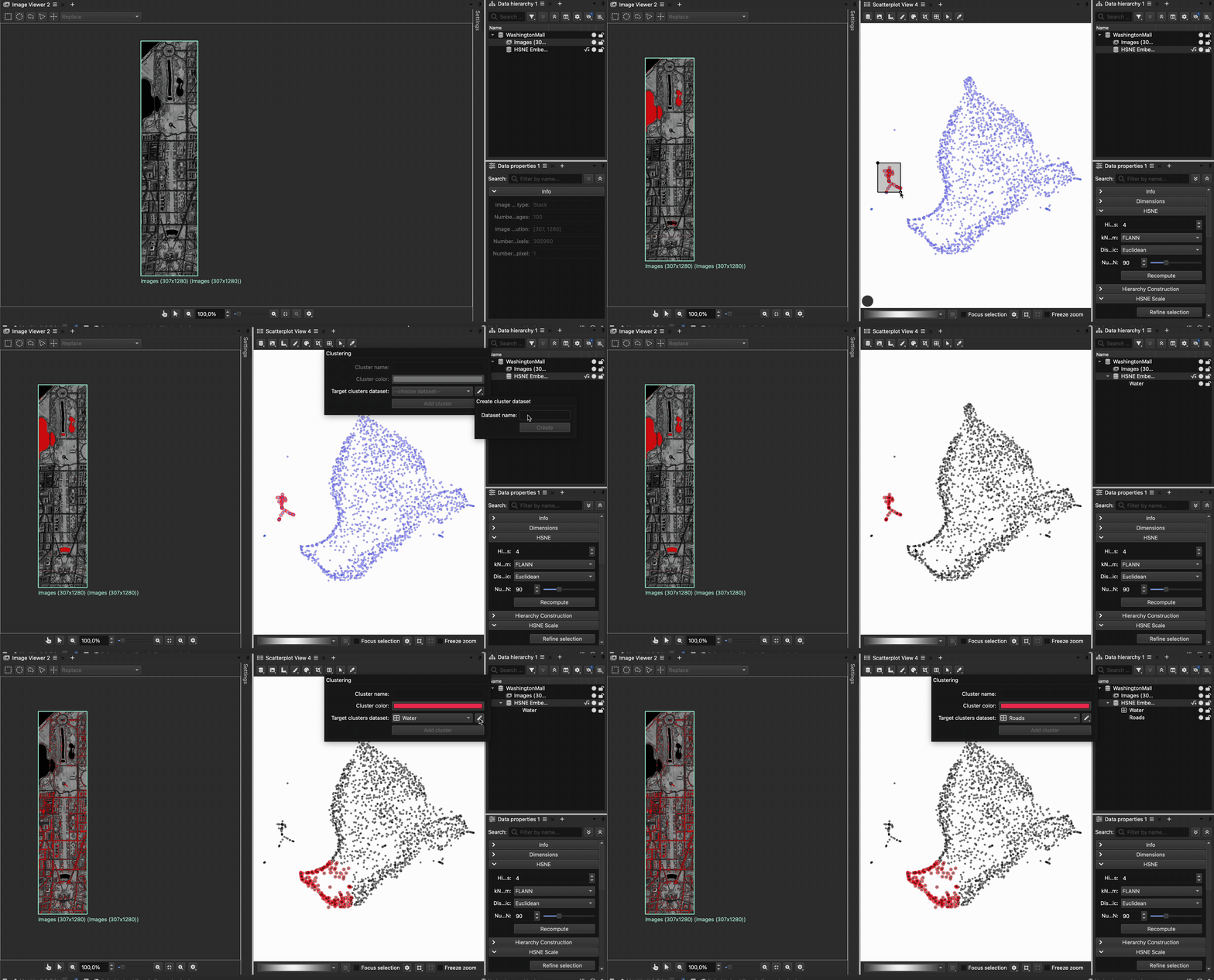
Automatic image conversion from derived data and selection